Showing posts with label 1:1 Classroom. Show all posts

Thursday, April 18, 2019

Tech Tip Thursday: QR codes and Forms


Being a 1 to 1 iPad teacher has made me the biggest fan of using QR Codes and Forms. I use both tools separately and together seamlessly. Today I'd like to share some of the ways I use them both. Below in the comments tell me some ways you use them.

QR Codes
A QR code, short for quick response code, is a machine-readable code that can be easily scanned by any electronic device with a camera. QR codes have a wide range of uses from stores use for advertisement to individuals using it to give out their contact information. There are so many possibilities since you can use QI codes to access a URL, save contact information to a phone, send a text message, send an email, display text, display a Facebook button, display a PDF, play a MP3 file, open an app in the app store, play an audio file, or display images.

I find QR Code helpful when creating instant feedback center activities or rotation stations. I love that I can have students to scan for feedback. I have even tried my hand at given feedback as a voice clip.

Forms
A Google Form is a web-based app ran by Google used to create forms to collect data. You have the option of displaying that dat in a spreadsheet. Google Forms are free and can be used for a wide range of uses. You can create polls, surveys, quizzes, and much more using Google Forms. I use forms for surveys, self-reflection, pre-view activities, checks for understanding, reteaching, and assessments. A unique way I use Forms are for "Choose Your Own Adventure" style review.

QR Codes and Forms
What do you get when you combine QR codes and Forms? I'll answer that for you. You get complete awesomeness that runs as well as a well oiled machine. Combining the two tools makes completing some tasks more seamless. They can also come in handing if you do not have a one to one class like myself but you have to check out devices to use in your class. How much do I love thee? Let me count the ways.


  1. Discipline for Students: You can have students scan a code to complete a form as they reflect on their behavior.
  2. Discipline for Teachers: Create a unique code that you scan and it notify the parents upon completion of the form.
  3. Passes: Have students complete a form when they are given permission to leave the class.
  4. Tardies: Have students scan and complete a form upon enter the class tardy.
  5. Tracking: You can tracking behaviors, pass usage, etc.
  6. Warm Ups: Have students scan and complete a form for warm up.
  7. Notifying Parents: You can use a unique QR code each student or a generic form that will notify parents each time you complete it.
  8. Checking Books Out: You can have students scan a code to check out books from your class library.
  9. Feedback: Use QR Codes to give feedback for behaviors, projects, papers, etc.
  10. Classroom Observations: Scan a code for the teacher then complete the form that they will then have access to.
  11. Lunch Count: Have students scan then choose a lunch choice. You be able to quickly check the numbers on the response tab.
  12. Event Registration: Use a QR code for access to the form for event registration.
  13. Activity Checkin: Use a QR code for access to the form for activity check in.
  14. Digital Gallery Walks: Students can create a code that give access to their product in a form. Students can view the product then give feedback in the form.
  15. Scavenger Hunt: Scan a code for the clue that will send students to the next code.
  16. Collecting information: Use a code with a form to collect information from students or parents. Parents can even scan the code at him to complete the form.
  17. Late Work Submissions: Now that you can submit attachments to Forms, students can scan a code to turn in a make up work.
  18. Assignment Submission: Students can scan to submit an assignment. They can submit to one form on a different form based on the assignment. Warm Up Form, Journal Form, Homework Form, etc.
  19. Parking Lot: Have students submit comments and questions to a Form via scanning a code while you are teaching or working in small groups. Address questions when convenient or at the end of class.
  20. Sign Up Sheet: Use to sign up for an event. Use multiple codes for multiple events. 
  21. Input: Use QR codes to get input on a topic.
  22. Professional Development sharing: Use a QR Code for sharing and give all access to the results in Google Sheets.
  23. Preview Activity: Use a code to gain insight from students as they preview upcoming materials. You can set up stations with codes to scan.
  24. Brainstorming: Use a QR Code for brainstorming and give all access to the results in Google Sheets.
  25. Collecting Data at Stations: If you are collecting data, use a code to collect it and share with data via Google Sheets allowing students to analyze it and decide how to display it.
  26. Scheduling: Use limited time slots with forms for schedule. Once a slot is filled it will be removed from the form.
  27. Lesson Plans: Code can be scan to complete plans as a team or can be used to access plans and give feedback via a form.
  28. Rubric: Create a rubric for a project and scan the code to complete the rubric and give feedback to students. Have students code your form and create their own unique code to receive feedback instantly after it has been graded.
  29. Evaluations: Use codes with Forms to share evaluation notes.
  30. Digital Breakout: Have the students scan codes in multiple areas and crack the code to go to the next code for the next challenge until all challenges are completed.

Tell me in the comments how you use QR Codes and Forms together.

Until Next Time,


Thursday, December 7, 2017

Tech Tip Thursday: Bitmojis


Have you ever thought about personalizing your class presentations, activities, or rules? Ever needed to express a feeling that may take too many words to express verbally? Do you want to grasp your students’ attention and make connections with them? Want to be the “cool” teacher on the team or hall? There’s a bitmoji for that!


Thursday, August 31, 2017

Tech Tip Thursday: QR Codes

Teaching in a technology rich environment affords you the opportunity to use many online resources. I have learned from experience that students struggle to type in web addresses correctly. I found myself walking around and typing in the same address numerous times. What if you are a teacher who has checked out the iPad cart and you need your students to complete a series of tasks that require them to go to several different websites? What if you are in a "Bring Your Own Device" (BYOD) and you want students to quickly get to a location on those devices? I have the answer for you! QR codes will solve your problems. QR stands for quick response and  these little scan codes are easy to create. There are tons of ways to use QR  Codes in the classroom but first lets see how easy they are to create.


Friday, June 9, 2017

Flipping over Math


For the past year and a half I have embarked on a journey to flip my 7th grade math class. Since I have officially end the 2016-2017 school year, I thought it was fitting to reflect on my process, achievements, and struggles. As I sit here, I think about:


  • What went well?
  • What can I improve? 
  • How to use the feedback I received?
I guess I'll begin with the basic question, "What is a flipped classroom or flipped learning?" Flipped learning is when content is delivered electronically prior to the class before the content will be applied. Students take notes or study the lesson on their own and come to class with knowledge of the topic. There are tons of layouts but I personally like to use: 1) videos to deliver the lesson, 2) a quick assessment to show prior knowledge or area of need, 3) quick mini review at the beginning of class then, 4) application or further instruction in small groups depending on student need during class.

Getting "Social" in the Classroom


Getting "Social" in the Classroom
Students are always eager to make connections with school and teachers outside of school, but there is a spotlight on keeping those connections appropriate. This year in my class I've incorporated social media into my classroom to allow students to make those connections outside of school. I have a class Instagram page and twitter hashtag that I've been using. Students can share with me or see what's new by following the hashtag. It took me almost the entire school year to relinquish some of my control a bit and allow students to post to the class social media outlets.

Thursday, March 23, 2017

Quizizz vs Kahoot: The battle of the Game-Based Response Systems

Quizizz and Kahoot are both game-based response systems and I love them both equally for different reasons. When my students arrive to class and I reveal that we will be playing either Quizizz or Kahoot, my students immediately become excited.

Quizizz is a game-based response system that may aid in the gamification of your classroom or to just get your students excited about learning. You could easily search for a ready-made quiz,  create your own using the Quizizz database of questions, or create a quiz with your own questions. Even if you choose a ready-made quiz, you could edit the questions, delete questions, or add questions of your own. You can also set time limits, as little as 5 seconds and as much as 15 minutes, for each question individually.


After the ease of setting up your quiz, Quizizz gives teachers the option of playing a live game or assigning it as "Homework." Assigning the Quizizz as "Homework" just means the students can complete the Quizizz until it expires. In either mode the students are able to view all the questions on their own device as well as see the leaderboard.


There are also several options that allow you to personalize the Quizizz for your students before giving them access to it. I usually keep everything on but sometimes I turn off the "Show Answers" feature. I find that the leaderboard motivates the students but when it's assigned as "Homework" students believe that they are in 1st place but they can be pushed out of the top spot if someone faster comes along.

I created a Quizizz to allow you to experience it through the eyes of the students. Unfortunately, it expires on April 5th. The expiration of the quizzes is one thing that I wish they'd change. There are some instances that I would like my students to be able to have access to Quizizz quizzes for as long as they'd like for practice and review.


Follow the link below and use the game code provided before April 5th to experience the thrill of Quizizz for yourself.

1. Open https://join.quizizz.com in your browser.
2. Enter the 6-digit game code 986726  , and click "Proceed."
3. Now enter your name and click "Join Game!"
4. You will get an avatar, and then see a "Start Game" button. Click it to begin!


What students love

  • It's fun for all the students. What's wrong with friendly competition? The students play it like it is a video game.
  • My students love the silly avatars. After they put the code and choose a name it amazes me how they look at the screen waiting on their avatar to pop up. 
  • Who doesn't like music? The music changes the entire atmosphere in my class. 
  • Based on my students reactions, I'm pretty sure that the memes are their favorite. It's almost as if they don't even realized that they are reviewing math skills and concepts.

What I love
  • I am not confined to my device whether it be an iPad or laptop to control the questions.
  • The students see the questions on their individual devices.
  • I feel as if I am as bad as the students when it comes to instant gratification because I love the live feedback when we play live and I love the instant results when I assign it as "Homework."
  • I love the fact that my students like it.
  • Quizizz is student paced. Whether it's live or not students can still move at their own pace.
  • I LOVE the ease of creating quizzes. The question search option has me sold!


Kahoot is already loved by many educators. It was the best new thing in our build last school year. The students LOVE to Kahoot and anytime I ask for suggests for reviewing math concepts, they ALWAYS say Kahoot. Kahoot as another game-based response system that helps students get excited about learning and teachers get excited about teaching. With Kahoot, you can also create your own Kahoots, their version of quizzes, or search ready-made Kahoot that are usually created by other educators. Kahoot gives the option of setting time limits of 5 seconds to 120 seconds.


Kahoot offers a little variety. You also have the option of creating discussions or surveys. 


Kahoots can only be played live but I've seen classroom on opposite sides of the globe play together using a shared screen. Students or participants see the questions projected on a screen and answer those questions on their own devices. You, as the teacher, hold the upmost honor of press the button to go to the next question. 


Kahoot also has a new question format. Jumble allows players to put the answers in a correct order instead of choosing one correct answer.


The students will see their own score and rank on their individual devices but the top 5 kahooters will be displayed on the projected Scoreboard.

You can download the results from the Kahoot to see the results and use for grading or instructional purposes.

What students love


  • The students love the game appeal. Kahoots are fun for all students.
  • Students love the music. I can't argue with that either.
  • Students love the Scoreboard. Most of my students are competitive. I even have a competitive spirit myself.
What I love
  • The ease of creating the Kahoots.
  • I like the variety. I like being able to do discussions, surveys, and the new Jumble questions.
  • I can't resist how much my students enjoy Kahoots.
  • I love being able to add videos to the questions.
When it comes to Quizizz, Kahoot, and students it is a win-win. You can create either with ease and the students love it so how could you lose. Both can be used as a preview to content to come, as a review for things already taught, or as reinforcement for freshly introduced concepts. When things appeal to my students, I try to incorporate them in my classroom. In this case, it not too hard to make happen. Drop me a line below and tell me if there is a clear cut winner in your eyes.

Until next time,


Monday, January 16, 2017

Transform Your Classroom with Google Forms


With a 1:1 iPad classroom and tons of Google Apps for Education training I have become an avid user of all things Google. I have created this list of ways I use Google Forms in my classroom and with my team members. In this age of technology, why not let your access to technology help you to work smarter not harder. Please comment below if you are interested in a tutorial on any of the listed uses.


For Classroom Management
I created the following GoogleSlides presentation outlining Google Forms uses for Classroom Management. My favorite thing about my uses for Classroom Management is that you do not need a 1:1 classroom in order for these to work for you. These uses can also be efficient using a chromebook or laptop.


For Instruction
For Google Forms for Instructions I wasn't as fancy and created a GoogleSlides presentation.

  • Assessments: The quiz feature has made this easier by leaps and bounds but prior to the quiz feature I fell head over heels for the Super Quiz Google Sheets add-on. I first began using forms for assessments when I begin to flip my classroom. I found Forms to be the most efficient way and with the Super Quiz add-on I was able to embed the forms on the webpage I was using for the videos and notes that I expected my students to review. I was able to give instant feedback as well as give additional practice or resources. I can have the assessments, big or small, graded automatically or you can grade responses manually. With the ability to send results to spreadsheets, you are able to track progress of your students and plan for future instruction at the snap of your finger.
  • Collect Data for Activities: You can have individuals or groups to use Forms to share their finds with the entire class. This would work across subject areas and it saves time. You are able to send data to a spreadsheet and share the spreadsheet with students. There are many possibilities after you share the class data. Students can analyze their finds, compare their findings to those of their peers, answer questions related to the data collected, and much more. This is not limited to numerical data. For ELA or History students can respond to research resources or readings then view the spreadsheet to compare the findings of their peers.
  • Choose your own Adventure Activities: This is by far my favorite of all the Form uses for instruction. I find that these are fun (but then again I am a geek) and remind me of books I read as an adolescent. You are able to create Choose your own Adventure Forms by adding sections and then adding "Go to section based on answer" to the questions.


  • Student Reflection: I have become a believer in student reflection. I use Google Forms before and after post test to have the students think about what grade they think they'll earn and afterwards as a reflection of what you actually earned and why. I use Forms after pretest as a tool to allow to set short term goals. Students tell what they would like to earn on the post test and how they plan to achieve the goal score. I have students to reflect on their behavior also,
  • Peer Evaluation: Students can collect responses about their work from their peers or rate their peers performance while working in a group.
  • Grade Collection: If you use rubrics, quick grade collect can be achieved using Google Forms. If you have your expectations outlined in a form, you can possibly grade students as you walk around and observe, during presentations, during one on one check-ins, or during gallery style walk around activities. If you are one of those teachers that walk around and check homework during the daily warm up, you can create a Form for that! 
  • Digital Breakout EDU: If yo are familiar with those mini versions of the escape the room scenarios, you'll love the idea of being able to achieve this digitally without all the locks and boxes.

For Planning

  • Team Lesson Plans: Although I am not currently in a building were we used the same lesson plans, after reading Matt Miller's The Magical Automatic Lesson Planner with Google Forms I was convinced that Forms would be an awesome way to plan as a team. I have been in buildings where each person of our math team would take turns to create our plans for the week. Without the pain of copying and pasting or trying to remember not the save over the original format you could create a form for planning and use autocrat to create a separate doc for each week or continuous doc for all the lesson plans for the week, month, quarter, or school year.
  • Data Analysis: Forms could be created to collect data and review as a team. An added feature of the Super Quiz Google Sheets add-on is able to add separate classes of teachers to one Quiz and being able to compare classes or teachers data.


    Thanks for stoping by,

Wednesday, January 11, 2017

What Worked Wednesday: My Course Guide

What worked for me on the first week of school you might ask? Why my Class Course Guide, of course! Last year I ditched a traditional syllabus and begin using a one page course guide. I had two motives behind making the switch. A) How many parents and students actually read it beyond my reading it to the students in class? B) I wanted something that students could tape in the interactive notebooks that we'd use all year and refer to it when they had any questions about the class.

With those two things in mind I made the plunge and ditched that old, long, boring, traditional syllabus. This nifty little one pager (a little term I stole from the great @EdTechLove) packs a ton of useful information in a fun little delivery format. I feel that this one page Course Guide can take the place of a syllabus because it give important information about the class without all the boring, yet important, stuff that many don't even bother reading.

Included are 10 sections outlining the class policies, supply list, assignment policy, how to receive extra help, our class in social media, Schoology (our LMS), our team webpage, and goals for the year. Since this is printed on a full sheet of paper and must fit in a standard composition notebook, there's even a handy little flap when you fold it for the student's and parent's signature. I always tell my students to fold on the dotted and cut on the solid when we do foldables in hopes that no one will cut their course guide but it sometimes still happen. Not students has cut their yet (knock on wood!) and I know one does.

In addition to the 2 goals I have for students I ask that students choose a goal that we will re-evaluate each quarter. I ask that students choose a goal then explain how they plan to achieve that goal. For example, most students would write get good grades or maintain an A in math. I'd always ask them how they plan to maintain this grade. Students usually said things like study more, not procrastinate, or do homework as soon as they got home so that they would not forget. I told them that my goal was to not procrastinate because man am I the biggest procrastinator in the world. When I was a student, my best work and highest grades were a result of my procrastination but I'm learning that the stress from procrastination is never worth it.

After going over the course guide with my students, I touched on the grading scale and some other things that are in the syllabus and posted in the classroom before allowing the students to complete a team scavenger hunt using the course guide. I gave the teams 15 minutes to answer 10 questions that could be answered directly from the course guide. I gave each person a job and had one person to write their number on the board once the team finished so I could keep up with the order in which each team finished. I walked around and checked the questions as the teams finished. I circled questions that were answered incorrectly and told students to go back and check their answers.

It seemed as if students thoroughly enjoyed this activity. I figured I should come up with something high energy for the students to do after going the course guide for a majority of the hour long class period. Students worked well with their teams and the first 5 teams who answered all questions correctly received a treat. All in all this was a very successful execution of a syllabus and team building activity that worked for me, LaDonna!


         Until next time,

            LaDonna 

Tuesday, January 3, 2017

Cross Curricular Planning: Trip of a Lifetime Project

I would like to start by telling you all how much I love projects that make connections with real world concepts. I had so much fun planning this project as well as working on this with my students.

This project was created as a cross curricular End-of-Unit project with my ELA teaching partner, English Middle School Mania. Students completed this project after reading Around the World in 80 Days and after completing a unit about rates, ratios, proportions, and converting decimals, fractions, and percents.

This project requires students to make decisions that required the use of math skills. The students created a budget, found the percent of a number, used proportions, and found unit rates and ratios.

This project includes the following:
  • Planning Packet
  • Slides Presentation for Students to complete
  • Tic Tac Toe Board for options for final products
  • A rubric for grading of the final project
  • Aligned to the Common Core Math Standards with options to connect to Common Core ELA Standard
Students presented their final products gallery style and allowed the presentees to complete a short survey about their presentation. Students received useful feedback they were able to reflect on for future projects. Students were also given the opportunity to reflect on what they did well and what they could have done better.

My ELA teaching partner and I would like to do a cross curricular project each quarter for the remainder of the school year. I'm excited about what we'll come up with and the things that our students will create.

Students' Presenting and Parts of Presentations


Student mapped her trip with a map in her Slides Presentation.


Explanation of choice of Rental Car.

Student reflecting on what was hard.

Student's final budget and explanation.

Student's choice of final presentation using the Tic Tac Toe Board.


What I learned
  • We have ability based classes and we accounted for our Advanced students without considering our Supported students. I learned that we must have accommodations for them before even beginning the project. I assumed that the students would be able to handle the workload with me working with them as a class step by step. That did not work and I ended up throwing out many parts for my Supported students.
  • I should have created a checkpoint calendar. I find that when I have created checkpoint calendars in the past students are more organized when working. Students also know what I expect and when I expect it. I also have an idea of the quality of work and can stop students who are off track to help to get back on track. This time around I assigned task for the day and as homework but I still had students working on what they wanted to and when I checked in for participation points some students did not receive those easy points.
I hope you check out my project on TpT. Thank you for stoping by!

Until next time,

Tuesday, August 9, 2016

I Survived Week One

This past week was the first week of school and I survived. I was excited for school to start but I just need an extra week to actually get some rest before hitting the ground running. Teacher official started back last Wednesday but I received my students this past Tuesday. To start with, my first couple of weeks aren't typical since I teach a 1 to 1 iPad math class. When I taught a traditional class I would focus on classroom policies, procedures, and expectations the first week while slowly adding content into the mix starting day 3. This year the beginning of the year looks a little different.

This year the first week is all about class policies, procedures, and expectations. It's a lot of repetition and practicing what I expect from them. Since middle school 7th graders are learning to be more independent but still pretty much rely on teachers and parents at the beginning of the year, I hold off on giving out my Course Guide until the 3rd day of school. I know that the students are receiving tons of papers to be reviewed and signed by parents starting on the 1st day of school and I don't want my very important information to get lost in the shuffle.


Wednesday, October 14, 2015

The Google Apps for Education Summit

Getting the opportunity to attend the 2015 Colorado  GAFE Summit was an amazing experience. I learned so many things and walked away with so many nuggets. I also met some amazing people and got a chance to make connections with individuals in my own building/district that wouldn't have been possible otherwise. There were so many highlights that it's a little overwhelming.

The GAFE Summit organized by EdTechTeam and was held in Louisville, CO October 10-11.  EdTechTeam organizes global summits for education to inspire and empower educators. I must say that I felt both inspired and empowered after attending this event.

The first quandary I encountered was choosing a sequence of sessions to attend. Day 1 was not as hard as Day 2 though. After hearing presenters mention apps and add-ons I had previously never heard of, I started to re-think my 2-Day session line-up.

The Rundown

Day 1

Session 1 - Digitize My Classroom by Dean Dahl. I believe he is a Google Certified Trainer or Innovator. He talked about some awesome ideas that opened my eyes as I am on this quest to a paper-free classroom. He also talked about some awesome tools that are going change my classroom and maybe even blow my students mind once I use them in the classroom. He shared the idea of using autocrat for forms to automatically send out forms to students and/or parents. Anyone who knows my, knows that I have a form for everything and now knowing that I can set forms to send an automatic responds..."Mind BLOWN!" For instances, students would fill out a Re-test form and it was send a document to parents stating the students current test score and their plan to prepare for the re-take.
He mentioned asking parent volunteers to sign up for a Ski Trip and automatically sent out check-in information, guidelines, packing list, etc. Some other tidbits from his presentation include: 
  1. Using drive for shared folders with colleagues and students.
  2. Using ScreenCastify to record with 2 screens.
  3. Connecting sites, forms, and YouTube.
  4. Using OmniBox Times Extension through Chrome Browser.
  5. Video taping (Flipping) you sub plans.
  6. Students blogging for chapter/unit closure.
Session 2 - Put the Power of Learning in the Hands of the Students with SmartAMP by Kris Astle. I was starting to give up on SMART by this cloud-based resource is amazing and I am SOLD. Since I teach math in a class that thrives on collaboration, I was looking for a resource that is like Google Docs that allows students to work together on a common item but also allow them to sketch or draw on their iPad. SmartAMP is it. This is also my key to having a global classroom. SmartAMP allows you to create workspaces to be shared or to be worked on individually. Students can be in a common classroom or in classrooms across the globe.
Can be used for daily exit/entrance tickets.

You can take control of the workspace or give control to a student to control. You can set limits and guides where students go from one task to the next and you can see their progression. If students are working as a group, you can see exactly what each student contributed and their communication back and forth. 
There is a live demo at Preston Middle School on Fort Collins in Colorado to showcase students working with students in Canada on a common project. Sign up for a 6 month trial here. Tell them that LaDonna sent you.

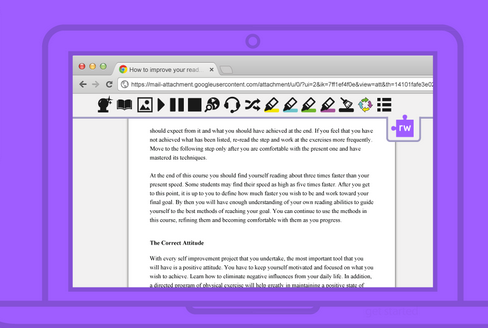
Session 3 - 5 Google Apps to Help Differentiate Instruction with TextHelp by Kay Tepera.  TextHelp is a Google Extension App that is very useful in any subject area for students with Dyslexia, Autism, and English Language Learners. This is also good for struggling readers. This extension had many nifty tools such as text-to-speech, vocabulary list creator, text highlighter tool, etc. Although this is a paid resource, it is completely free for teachers using: goo.gl/kz0cSC. There is also an iPad app available.


Session 4 - Pump up Your Data with Piktochart by Amy Hitchner. Piktochart is a website that help you create infographics. Infographics tell a story with data, engage your audience, and appeal to visual learners. This session real appealed to me since I've been researching infographics for about a month now to introduce them to my students as a presentation tool. I found her presentation really easy to follow and so simplistic that I asked for permission to show her presentation to my students. I'm currently creating an infographic to share the class grades based on study habits, effort given, and taking advantage of additional opportunities. 


At the end there was a demo slam. The demo slam consisted of several representatives given 3 minutes to wow us with a tool, resource, or product.

2015 Colorado GAFE Summit Demo Slam

  • peardeck.com
  • block pop ups and adds - “add a block” extension
  • google forms - get add ons - “save as doc” - get google form info in a more readable doc format
  • google extension - “save to drive”
  • talk into google apps - text to speech within google docs - under “Tools” menu
  • google extension - manages many extensions - “extensity” - Quickly enable/disable Google Chrome extensions
  • google extension - “chrome cast”
  • google extension - “black menu”  - The easiest access to the Google universe
  • google extension - “scrible” Smarter Web reading & research. Annotate, bookmark, save, manage & share online articles. Citations, bibliographies, reports & more
  • google extension - “google tone” - Broadcast any URL to computers within earshot
  • bit.ly/defunkify - improve the look of your google web pages
  • turn youtube clip into gif animation (15 sec or less) - type “gif” right after www.
  • download youtube clip - type “ss” right after www.
  • google extension - “read and write” - text to speech
  • Google Cardboard - virtual reality in a simple way
  • google extention - “speak it”- Select text you want to read and listen to it.
  • google extension - “draft back”
This concludes Day 1 of the GAFE Summit.

Thanks for stopping by,