With a 1:1 iPad classroom and tons of Google Apps for Education training I have become an avid user of all things Google. I have created this list of ways I use Google Forms in my classroom and with my team members. In this age of technology, why not let your access to technology help you to work smarter not harder. Please comment below if you are interested in a tutorial on any of the listed uses.
For Classroom Management
I created the following GoogleSlides presentation outlining Google Forms uses for Classroom Management. My favorite thing about my uses for Classroom Management is that you do not need a 1:1 classroom in order for these to work for you. These uses can also be efficient using a chromebook or laptop.
For Instruction
For Google Forms for Instructions I wasn't as fancy and created a GoogleSlides presentation.
Assessments: The quiz feature has made this easier by leaps and bounds but prior to the quiz feature I fell head over heels for the Super Quiz Google Sheets add-on. I first began using forms for assessments when I begin to flip my classroom. I found Forms to be the most efficient way and with the Super Quiz add-on I was able to embed the forms on the webpage I was using for the videos and notes that I expected my students to review. I was able to give instant feedback as well as give additional practice or resources. I can have the assessments, big or small, graded automatically or you can grade responses manually. With the ability to send results to spreadsheets, you are able to track progress of your students and plan for future instruction at the snap of your finger.
Collect Data for Activities: You can have individuals or groups to use Forms to share their finds with the entire class. This would work across subject areas and it saves time. You are able to send data to a spreadsheet and share the spreadsheet with students. There are many possibilities after you share the class data. Students can analyze their finds, compare their findings to those of their peers, answer questions related to the data collected, and much more. This is not limited to numerical data. For ELA or History students can respond to research resources or readings then view the spreadsheet to compare the findings of their peers.
Choose your own Adventure Activities: This is by far my favorite of all the Form uses for instruction. I find that these are fun (but then again I am a geek) and remind me of books I read as an adolescent. You are able to create Choose your own Adventure Forms by adding sections and then adding "Go to section based on answer" to the questions.
Student Reflection: I have become a believer in student reflection. I use Google Forms before and after post test to have the students think about what grade they think they'll earn and afterwards as a reflection of what you actually earned and why. I use Forms after pretest as a tool to allow to set short term goals. Students tell what they would like to earn on the post test and how they plan to achieve the goal score. I have students to reflect on their behavior also,
Peer Evaluation: Students can collect responses about their work from their peers or rate their peers performance while working in a group.
Grade Collection: If you use rubrics, quick grade collect can be achieved using Google Forms. If you have your expectations outlined in a form, you can possibly grade students as you walk around and observe, during presentations, during one on one check-ins, or during gallery style walk around activities. If you are one of those teachers that walk around and check homework during the daily warm up, you can create a Form for that!
Digital Breakout EDU: If yo are familiar with those mini versions of the escape the room scenarios, you'll love the idea of being able to achieve this digitally without all the locks and boxes.
For Planning
Team Lesson Plans: Although I am not currently in a building were we used the same lesson plans, after reading Matt Miller's The Magical Automatic Lesson Planner with Google Forms I was convinced that Forms would be an awesome way to plan as a team. I have been in buildings where each person of our math team would take turns to create our plans for the week. Without the pain of copying and pasting or trying to remember not the save over the original format you could create a form for planning and use autocrat to create a separate doc for each week or continuous doc for all the lesson plans for the week, month, quarter, or school year.
Data Analysis: Forms could be created to collect data and review as a team. An added feature of the Super Quiz Google Sheets add-on is able to add separate classes of teachers to one Quiz and being able to compare classes or teachers data.
I was astatic to get the opportunity to attend my second EdTechTeam's Google Apps for Education (GAFE) Summit. I faced the same challenge as the first summit when trying to decide which session to attend. Having an amazing team helped make the process easier since we were able to divide and conquer when there was too many good sessions to choose from during any given time slot.
As with my Fall experience, I left with an overwhelming amount of information to go back and implement this upcoming school year. I found myself geeky out a little more this time around. There were ideas that I attempted to implement last year but things didn't go over as smoothly as I would have liked. There were session that I attended that rectified my issues that caused so many aha and #mindblown moments. I am once again grateful to have been able to experience this epic time to grow, learn, and collaborate with fellow educators.
The Rundown Opening Keynote
The opening keynote was eloquently delivered by Holly Clark (@HollyClarkEdu) about Digital Disruption in education. Learning should be amplified by technology and textbooks should by used as reference points. She used the definition of disruption as interrupting the normal progress or activity of something with something better. Using that definition means that disrupting education is to interrupt or change the existing system and improve it.
She talked about how Netflix disrupted Blockbuster which now no longer exist and how Uber is doing the same thing to taxis. She share an amazing video that you can find here or below. When you see a need you should make adjustments otherwise someone else will and you/your methods may become obsolete.
She also talked about binge watching Netflix but we need to practice binge learning. When we as professional binge learn, we can't get enough of what we are learning (Similar to my GAFE experience; I couldn't get enough). We must create situation where our students binge learn, can't get enough of what we're doing in the classroom. We as educators must be restless learners.
What is more important the answers or the questions? Traditionally education value answers, not questions but we must create an environment that is the opposite. Now is the time to to put the importance on questions and create Chief Questioning Officers.
Her last point was about adjacent possibles. Adjacent possibles captures both the limits and the creative potential of change and innovation. With adjacent possibles in schools we must allow for student agencies which give students ownership of their learning and requires deeper thinking. We must begin by telling students the problem and asking them to solve it. She lit a spark in me like no other.
Session 1
Sara Stuhr (@mrsstuhr5th) did a great job at demonstrating how to use Twitter in the Classroom with her presentation, To the Twittersphere and Beyond. I've been wanting to use twitter in the classroom for a while now. Especially now that I am a 1:1 iPad teacher with unlimited possibilities but I've been really nervous about how the parents and administration would respond. I'm going to begin by taking baby steps. I plan to have different groups or individuals tweet daily with the hashtag #frommathrm202.
First she addressed Student Engagement. She showed that this should be put in the students' hands and they should have ownership.
Students should answer the questions: What do you want your parents to know? and What are you proud of?
Twitter in the classroom should be used to document student learning by the the student.
Students should be the force behind getting parents onboard.
Tweeting should be a student job! A differnt student can post the tweet for the day everyday.
One con was parent backlash because twitter is social media. She stressed getting media releases for each students and never posting pictures of students when the parent does not give permission.
I was not really sold on all the pieces of parent engagement. I do feel that this peice is beneficial when parents are active on social media or twitter. Ways to get the parents involved.
Set parents up and explain how to use it.
Make it apart of the school culture.
Make sure their are media releases for students' photos and always respect student privacy.
Took the place of newsletters
Twitter benefit: Parents can direct message you
Twitter can be used to building your PLN.
Follow popular education hashtags to find other educators you may be interested in following.
Tweetdeck.twitter.com is an amazing tool to multitask on Twitter. You can follow particular hashtags, messages, mentions, and twitter activity all in one place on one page without having to click through different pages or links.
Find other educators to follow by following hashtags
Twitter Chats can be used with your students or within a professional community.
There is a question posted with a hashtag.
Individuals answer the question using the same hashtag.
Session 2
One of my favorite session by far was with Daniel Sharpe (@get_sharpe) in Digital Badging: Level Up Your Classroom Google. I tried this last year but only ended up using the leaderboard but his explanation and method simplified the entire process. The way he has it set up also put it back on to the student which I love. Not only did he sure the sheets with the attendees but he also walked us through a very quick and easy process of creating badges with Google Drawings.
How this works:
First, copy the Teacher and Students' sheets templates. You can find both using the link above.
Next, Connect your student template to the teacher template. Then share with your students. One of the most beneficial things I learned during this step works for every google drive item. To force google files to copy when downloaded, change the end of the url to /copy (everything beginning with the word edit after the forward slash)
Then you type the badge information in the teacher template. The beautiful thing about this step is that you can edit it all year and any changes made would automatically update on the student template. I love that I don't have to have all my badges on the 1st day because the students will be able to see all updates changes.
Now may favorite part about this, CREATING THE BADGES! He has a video tutorial for the process but it was so simple that I got "geek"bumps in my excitement.
After you create your badges and create unique codes for each one, you are done! Sit back and watch the magic transform your class. There is one thing that I am trying to work out. With the power in the students hands you give them the unique codes for the badges they earn. Students can share the code with peers who have not yet earned badges. I am working a formula that with change the digits to starts after entered. Fingers crossed that this will be possible.
Allow the students to reflect about why certain artifacts were chosen.
At the beginning of the year, students should reflect of learning goals for future self assesement.
She provided a planning template: https://drive.google.com/file/d/0ByzloTthg-EVOVNXZnl1ZmdsSDQ/view The most valuable nugget I walked away from this session with is now knowing that you can create templates for sites that are as easy as fill in the blank to allow students to have uniform portfolios while still allowing for creativity and personalizations.
Session 4
Screencast Your Way to a Flipped Classroom with Brianna Mazzella (@BriMazzella) was very help as I am continuing my effort to flip my math class. She also opened my mind to untraditional possibilities that do not normally come to mind when you think about a flipped class.
Screencastify is a wonder chrome extentsion that with make flipping you class a breeze if you plan to make your own videos. You are able to record a video of yourself, your voice over a document, site, or image, or your live desktop with yourself in a frame. I have not used my laptop for video yet but I look forward to testing it out within the next couple of days.
She also gave a list of quick tips:
Allow the students to create their own screencast.
Flipped learning looks different in different situations.
Students can view the video in class as you rotate small groups
Students can view the video at home.
Must use TAB mode to use additional tools during screencast
Alt-F - Spotlight tool
Can not use drawing tools in Desktop mode or CAM mode
Drawings will not disappear from page to page in Present mode of Slides
Alt-Z - Erase Drawings off the screen
Day 2
Opening Keynote
The opening Keynote for day 2 was amazing. Jay Atwood (@jayatwood) spark my interest with his keynote on Instructional Identity Crisis.
He began with these Four Pillars when it comes to educators teaching in the digital age.
Know what's trending
Have fun with it
Learn from someone else
Give it ago
He introduced me to The Selfie Game. Sounds interesting.
Take a selfie to match a topic or title.
We must setting SMART goals.
Growth is better than you were yesterday no matter how little the change.
Identity
As an educator you must "Unapologetically" be you
Think about who you are as a person, educator, professional
Knoe that you are shaped by your experiences
Generativity vs. stagnation
You can’t be positive and contributing if you are stagnant or confused, a lesson we can all live by.
Identity vs. role confusion
Professional learner takes:
Motivation
Strategies
We must Learn. Unlearn. Relearn. I lesson we can all learn from .Yoda
#ttwwhadi (A hashtage that had us all confused.)
Means “That’s the way we always did it!”
“But they love it!”
To get better you must be willing to to change #disrupteducation
Sunk Cost Fallacy: You spend the most time on things that are important to you.
You must that old stuff go even if you’ve always done it that way
Share
Used to be "Show your work" now it’s "Share your work."
Value is not in what you own, it’s in what you share! I'm considering puting this on my wall for motivation.
http://vocaroo.com/ is a cool voice recording site for laptops and chrome books but it doesn’t work on ipads/iphones :(
Let’s Recap is a wonderful tool for all device to student to video record responses to questions, passages, or videos. I most excited to try this little gem out. Can't wait to share the outcome after I use this with my students.
Session 6
I most excited about Showcase your Style with Sites and Blogger with @cmoor4 since I have been trying to figure out smooth way to incorporate blogging into my classroom. Last year KidBlog switched from free to paid after I set my students up and I did not want to introduce my students to a new platform so I put it off for a another school year.
One of the most valuable things I learned for this session was that giving your students a global audience was as easy as tweeting a hashtag. Share your students work with #commentsforkids!
Chris described sites are more uniform for portfolios while suggesting that blogger be used as blogs to document day to day in the classroom.
Put the responsibility in the hands of the students.
GreenScreen (Google App) can be used to put any background behind your students in a photo or video.
Remember: You are not the sage on the stage. Let your students do the work (dance on the stage).
Annotate.
Is about the journey/process, not the product;
Making connections;
Commenting and collaborating;
Students can add Voice, Video, and Links;
Aides in the learning process.
Publish.
Is about sharing work,
Giving an audience,
You can take this a step farther by giving your students a global audience
Tools:
Google Drawings to create and annotate
Create badges
Vocabulary (Frayer model/Unpacking Vocab)
Bubble Map
Timelines
Announcements
Posters
Animate Images
Comment on images to make annotations
Can link images
Seesaw to create, annotate, and publish
Session 8
Data’s not so Scary with @jayatwood made me rethink the possibilities about using Sheets in the classroom. I am a data person and I have many ways for using sheets with add-ons and forms to collect data from my students that I use for planning for myself. Jay introduced me to new concept of having my students use sheets in class. I even had a conversation with my ELA half, @aadamsELA, about how she could use sheets in her class with writing and students are about to see all the statements in the sheet added via forms and collaborate or vote on their peers' responses.
bit.ly/jraDATA is a very useful spreadsheet shared with the participants to demonstrate the many uses.
We as educators much think, "How can we use the 4C's everyday?"
I love the idea of offering quiet moments of creativity during the day in every single class. Is that something you think you can do? I am working on it.
We must relinquish more control to the student
LOVE THE IDEA OF A STUDENT TECH TEAM! The Student Tech Team realy gave me geekbumps! I plan to work with @historicalipad to get this idea off the ground at our school.
Here's a fun fact:
Currently every 2 days we create as much information as had been created up until the dawn of the year 2003.
I most excited to learn about RAT: A way to think about tech integration like SAMR
Replacement: Do the same thing but using a different tool.
Amplification: Practice, above the teacher. Amplify the learning. Example: Flipped Learning
Transformation: Focuses on the students, student centered. Take risk and lead forward into the new ways and allow the students to work with it that will surprise you.
Using RAT we put the learning into the hands of the students by being innovative and allowing the students to choose. I am looking forward to implementing RAT in my class this year.
This post was a mouthful and I hope you were able take, if not many, at least one gem away from my experience at the my second GAFE Summit. Leave comments below. I'd love to here from you.
Getting the opportunity to attend the 2015 Colorado GAFE Summit was an amazing experience. I learned so many things and walked away with so many nuggets. I also met some amazing people and got a chance to make connections with individuals in my own building/district that wouldn't have been possible otherwise. There were so many highlights that it's a little overwhelming.
The GAFE Summit organized by EdTechTeam and was held in Louisville, CO October 10-11. EdTechTeam organizes global summits for education to inspire and empower educators. I must say that I felt both inspired and empowered after attending this event.
The first quandary I encountered was choosing a sequence of sessions to attend. Day 1 was not as hard as Day 2 though. After hearing presenters mention apps and add-ons I had previously never heard of, I started to re-think my 2-Day session line-up.
The Rundown
Day 1
Session 1 - Digitize My Classroom by Dean Dahl. I believe he is a Google Certified Trainer or Innovator. He talked about some awesome ideas that opened my eyes as I am on this quest to a paper-free classroom. He also talked about some awesome tools that are going change my classroom and maybe even blow my students mind once I use them in the classroom. He shared the idea of using autocrat for forms to automatically send out forms to students and/or parents. Anyone who knows my, knows that I have a form for everything and now knowing that I can set forms to send an automatic responds..."Mind BLOWN!" For instances, students would fill out a Re-test form and it was send a document to parents stating the students current test score and their plan to prepare for the re-take.
He mentioned asking parent volunteers to sign up for a Ski Trip and automatically sent out check-in information, guidelines, packing list, etc. Some other tidbits from his presentation include:
Using drive for shared folders with colleagues and students.
Session 2 - Put the Power of Learning in the Hands of the Students with SmartAMP by Kris Astle. I was starting to give up on SMART by this cloud-based resource is amazing and I am SOLD. Since I teach math in a class that thrives on collaboration, I was looking for a resource that is like Google Docs that allows students to work together on a common item but also allow them to sketch or draw on their iPad. SmartAMP is it. This is also my key to having a global classroom. SmartAMP allows you to create workspaces to be shared or to be worked on individually. Students can be in a common classroom or in classrooms across the globe.
Can be used for daily exit/entrance tickets.
You can take control of the workspace or give control to a student to control. You can set limits and guides where students go from one task to the next and you can see their progression. If students are working as a group, you can see exactly what each student contributed and their communication back and forth.
There is a live demo at Preston Middle School on Fort Collins in Colorado to showcase students working with students in Canada on a common project. Sign up for a 6 month trial here. Tell them that LaDonna sent you.
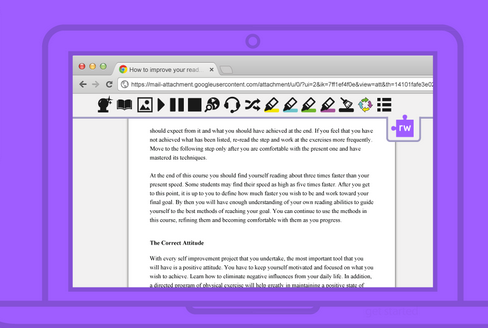
Session 3 - 5 Google Apps to Help Differentiate Instruction with TextHelp by Kay Tepera. TextHelp is a Google Extension App that is very useful in any subject area for students with Dyslexia, Autism, and English Language Learners. This is also good for struggling readers. This extension had many nifty tools such as text-to-speech, vocabulary list creator, text highlighter tool, etc. Although this is a paid resource, it is completely free for teachers using: goo.gl/kz0cSC. There is also an iPad app available.
Session 4 - Pump up Your Data with Piktochart by Amy Hitchner. Piktochart is a website that help you create infographics. Infographics tell a story with data, engage your audience, and appeal to visual learners. This session real appealed to me since I've been researching infographics for about a month now to introduce them to my students as a presentation tool. I found her presentation really easy to follow and so simplistic that I asked for permission to show her presentation to my students. I'm currently creating an infographic to share the class grades based on study habits, effort given, and taking advantage of additional opportunities.
At the end there was a demo slam. The demo slam consisted of several representatives given 3 minutes to wow us with a tool, resource, or product.
2015 Colorado GAFE Summit Demo Slam
peardeck.com
block pop ups and adds - “add a block” extension
google forms - get add ons - “save as doc” - get google form info in a more readable doc format
google extension - “save to drive”
talk into google apps - text to speech within google docs - under “Tools” menu
google extension - manages many extensions - “extensity” - Quickly enable/disable Google Chrome extensions
google extension - “chrome cast”
google extension - “black menu” - The easiest access to the Google universe
google extension - “scrible” Smarter Web reading & research. Annotate, bookmark, save, manage & share online articles. Citations, bibliographies, reports & more
google extension - “google tone” - Broadcast any URL to computers within earshot
bit.ly/defunkify - improve the look of your google web pages


 Thanks for stoping by,